Coming soon

BATCH · PREMIUM

Discover what Batch can do

Try the batch tools at your own pace and for free. This tool handles many images at once, saving you time and money.

Private Image Converter & Editor

Share the moment. Not your private information!

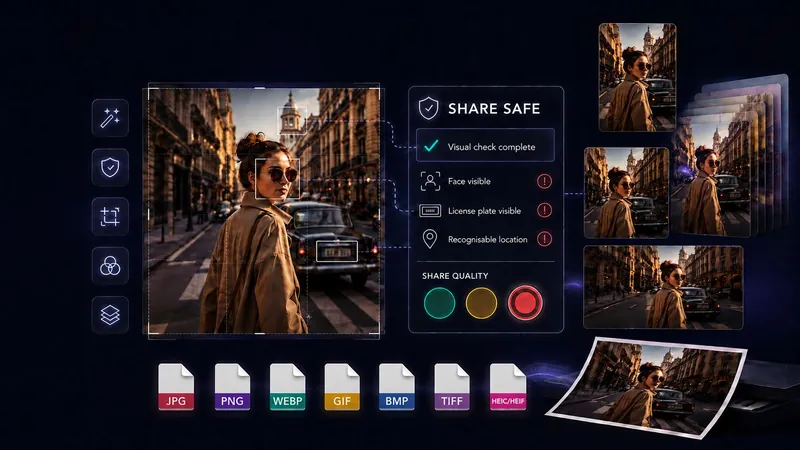
GeckoShareSafe is a private image editor and converter for preparing photos safely for social media. Remove backgrounds, unwanted objects, and sensitive metadata. Resize with ready-made templates, apply filters, and convert image formats—all locally in your browser. Your images never leave your device, and all single-image tools are free.

Coming soon
Coming soon
Quick videoSee GeckoShareSafe in actionWatch a 54-second example of preparing an image locally for safer sharing.Watch on YouTube ↗

DISCOVER ALL FEATURES

Explore everything you can do with your images

View all toolsCollapse section

Share Safe and Convert are free and require no account. Batch is a preview in this browser.

  • Share Safe

    Scan for privacy risks, remove sensitive metadata, and prepare an image for safer sharing.

    Read about Share Safe privacy tools
  • Convert

    Convert between common image formats and save new copies on your device.

    Output: JPG, PNG, WebP, GIF, BMP or TIFF. HEIC/HEIF is input only.

    Read about image conversion
  • Collage

    Combine up to 10 photos in ready-made social-media templates. Drag each image into a separate frame to create a finished collage.

    Read about photo collages
  • Batch

    Prepare multiple images together. Batch is currently available as a browser preview.

    Batch is a preview in this browser.

    Read about batch processing
  • Remove Background & Objects

    Remove or replace backgrounds, or mark unwanted objects and text for local AI removal.

    Read about background and object removal
  • AI Upscale

    Improve detail with local AI, then drag the before/after handle to compare.

    Read about AI image upscaling
  • Crop

    Crop with rectangle, circle or oval shapes and choose the surrounding colour.

    Read about image cropping
  • Image Filters

    Choose Original, Vivid, Soft, Warm, Cool, B&W or Vintage, then adjust strength, brightness, contrast, saturation and warmth.

    Read about image filters
  • Open common image files

    Convert: JPG, PNG, WebP, GIF, BMP, TIFF and HEIC/HEIF. Share Safe: JPG, PNG, WebP and BMP.

    Open function
  • Set the size

    Original dimensions · Longest edge · 1920 px · Longest edge · 1600 px · Longest edge · 1080 px · Custom longest edge

    Open function
  • Use ready-made size templates

    Create Stories and Reels, vertical feed, square, landscape and Pinterest images.

    Open function
  • Create several sizes from one image

    Select every format you need and prepare them in the same workflow.

    Open function
  • Adjust each format separately

    Move and scale every selected crop independently, with safe-zone guides and enlargement warnings.

    Open function
  • Rotate & flip

    Rotate the working image left or right, or mirror it horizontally or vertically.

    Open function
  • Remove objects

    Place a resizable frame closely around one piece of text. Local AI reconstructs the selected background, so results are best on simple backgrounds and should be reviewed carefully.

    The first use downloads about 93 MB. After the model is cached, the tool can work offline.

    Open function
  • Hide sensitive details

    Add multiple movable, resizable and rotatable privacy areas using blur, pixelation or a solid colour cover.

    Set the blur amount, pixel size, cover colour and angle separately for each area.

    Open function
  • Add flexible captions

    Use multiple captions, system or device fonts, size, rotation, bold, italic, colour, panels, drop shadow and text outline.

    Open function
  • Add text or logo watermarks

    Choose signature, protective or repeated styles and adjust position, size, opacity, rotation and colour.

    Open function
  • My styles

    Saved styles stay in this browser. Clearing browser data removes them.

    Open function
  • Remove private metadata

    Create finished images without carrying over the original location, device or capture information.

    After the app’s core files have been cached, metadata removal remains available offline.

    Open function
  • Undo, redo and compare

    Reverse editing changes, restore the original crop and temporarily compare edits with the original image.

    Open function
  • Keep everything on your device

    Your image is processed inside this browser. It is not uploaded to GeckoShareSafe or sent to cloud processing.

    Your image stays on your device. Your original is never changed.

    Open function

Questions and answers

Frequently asked questions

Expand sectionCollapse section

Practical answers about resizing, editing, conversion, AI tools, privacy, metadata, offline use and file formats.

Social-media sizes and image quality

How do I resize an image for Instagram?

Open the image and choose the template that matches where it will appear: 1080 × 1920 for Stories and Reels, 1080 × 1350 for a vertical feed image, or 1080 × 1080 for a square post. You can reposition and scale each selected format before saving it.

Why does Instagram crop my photo, and how can I prevent it?

Instagram may crop a photo when its shape does not match the selected post, Story or Reel format. Prepare it first with the matching GeckoShareSafe template, then move and scale the image yourself so you decide what remains visible before uploading.

How can I resize an image without losing quality?

Begin with the highest-quality original available and avoid enlarging a small source more than necessary. If you need a larger image, Convert also offers local AI upscaling at 2× or 4×. Review the result carefully because no image tool can restore every missing detail.

Can I resize one image for all social media platforms?

You can select several ready-made sizes from one original and adjust every version separately. The seven templates cover square, portrait, tall portrait, Story or Status, Pinterest, landscape and wide images. Platform requirements can change, so confirm the current requirements before publishing.

What size should an Instagram, LinkedIn or Facebook image be?

The correct size depends on where the image will appear. GeckoShareSafe includes 9:16, 4:5, 3:4, 1:1, 2:3, 16:9 and 1.91:1 templates. Platform requirements can change, so verify the current dimensions, especially for advertisements or unusual placements.

How do I reduce image file size without losing quality?

Resize the image to the dimensions you actually need, then choose JPG or WebP and adjust the quality control. PNG is lossless but can be much larger. Reducing file size normally involves a tradeoff, so review the finished image before publishing.

How do I change an image’s aspect ratio without stretching it?

Choose the GeckoShareSafe template with the aspect ratio you need, then reposition and scale the image inside the frame. This preserves the image’s proportions and avoids stretched faces, circles or objects while giving you control over the final crop.

Metadata and location privacy

What information can photo metadata contain?

Metadata is information stored alongside the image pixels. Depending on the camera, phone and editing history, it may describe the capture date, device or camera model, image orientation, editing software and—in some cases—GPS coordinates.

Can a photo reveal the date and time it was taken?

Yes. A photo may contain its original capture date and time in metadata. Visible clocks, calendars, tickets or screenshots can also reveal when it was taken, so inspect both the metadata and the picture itself.

How do I remove metadata from a photo before sharing it?

Save a new copy in Share Safe or Convert. GeckoShareSafe re-encodes the image without carrying over the original location, device or capture information.

How do I remove GPS or location data from photos?

Private metadata is removed from saved copies. The new file does not carry over the original embedded location data. Remember that landmarks, street signs and other visible details can still reveal where a picture was taken.

Can someone find my location from a photo?

Possibly. A photo may contain embedded location information, and the visible picture may show landmarks, addresses, reflections or other clues. Remove private metadata and inspect the entire image before sharing it.

Do screenshots contain metadata or location data?

Screenshots usually do not inherit a source photo’s camera EXIF or GPS information, but the device or capture application may add other metadata. Open a JPG, PNG, WebP or BMP screenshot in Share Safe and use privacy areas to hide names, notifications, maps, coordinates or account details.

Does Instagram, Reddit or Facebook remove EXIF data?

Platforms may remove or change metadata from publicly displayed copies, but their behaviour can change and may differ between uploads, messages and downloads. The safer approach is to remove unnecessary metadata on your own device before uploading.

Does removing EXIF data reduce image quality?

Metadata is separate from the visible pixels, so removing it is not what reduces visual quality. GeckoShareSafe creates a new image file, however, so the selected dimensions, file format and JPG or WebP quality setting still affect the finished result.

How do I check whether the metadata was actually removed?

GeckoShareSafe does not currently include a metadata inspection report. After saving, you can inspect the new file with your operating system’s file-information tools or a trusted metadata viewer before publishing it.

Hiding visible private details

How do I blur part of a picture?

Choose the privacy-area tool, add an area and drag it over the detail you want to hide. Resize or rotate it as needed, then select blur and adjust the blur amount.

How do I hide sensitive information in a screenshot?

Open a PNG, JPEG or WebP screenshot and place separate privacy areas over names, addresses, account details or messages. Each area can use blur, pixelation or a solid colour cover.

Can GeckoShareSafe remove visible text from an image?

Yes. In Share Safe, choose Remove objects and place the frame closely around one piece of text. Local AI reconstructs the selected background, so review the result carefully. The first use downloads about 93 MB; after the model is cached, the tool can work offline. For highly sensitive text, use a solid privacy cover whenever the reconstruction is not convincing.

How do I blur a face, license plate or address in a photo?

Add one privacy area for each detail, then move, resize and rotate every area independently. For stronger concealment, choose pixelation or a solid cover instead of a light blur and inspect the saved image at full size.

Can blurred or pixelated information be recovered?

Sometimes. A light blur or small pixel blocks may leave text or other details recognizable or partially reconstructable. For passwords, account numbers, addresses and similar private information, use GeckoShareSafe’s solid colour cover, inspect the saved image at full size and share only the newly created copy.

Editing, captions, watermarks and file formats

What editing tools can I use before saving?

You can crop, rotate and flip, apply filters and image adjustments, remove or replace the background, remove visible text with local AI, add privacy areas, captions and text or logo watermarks, then choose the finished file format.

Can I add a watermark without uploading my photo?

Yes. GeckoShareSafe adds a text or logo watermark directly in your browser, without uploading your photo or logo for cloud processing. Choose a signature, protective or repeated style, adjust its appearance and save the finished image back to your device.

Which image formats can GeckoShareSafe open and save?

Convert can open JPG, PNG, WebP, GIF, BMP, TIFF and HEIC/HEIF. It can save JPG, PNG, WebP, GIF, BMP or TIFF; HEIC/HEIF is input only. Share Safe accepts JPG, PNG, WebP and BMP and offers the same six output formats.

How do I convert HEIC or WebP to JPG?

Open the file in Convert, choose JPG and save a new copy. HEIC/HEIF is accepted as input, and WebP is supported for both input and output.

Using GeckoShareSafe

Are my images uploaded anywhere?

No. Your images are processed inside your browser and are not uploaded to GeckoShareSafe or sent to cloud processing.

Is GeckoShareSafe free, and do I need an account?

Share Safe and Convert are free and require no account. Batch can be explored as a free preview in this browser, but full Batch processing and saving are not available in the browser.

Can I use GeckoShareSafe offline?

Yes, after the app’s core files have been cached by the browser. Features that use a local AI model become available offline after that model has also been downloaded and cached at least once.

Will the tool change my original image?

No. All edits are applied to a working copy. Your original file is never overwritten; finished images are saved as new files.

Does removing metadata make an image completely private?

No. The local scan can help find detectable faces, supported metadata, English text and a decodable code, and saved copies do not carry over the original private metadata, but automated checks can miss details. Review the entire image. Use Remove objects for suitable areas, or a solid privacy cover for highly sensitive information and whenever reconstruction is not convincing.

What can I do in the Batch preview?

You can add multiple images and preview resizing, format, quality, filters, adjustments, watermarks, privacy covers and per-image positioning. Full Batch processing and saving are not available in this browser.

Image guides

Learn more about local image editing and safer sharing

Expand sectionCollapse section

Independently made. No subscriptions. No ads. No tracking. No cloud account. Just a useful tool.