
Two photos side by side
Join two pictures horizontally for before-and-after comparisons, matching portraits, products or progress photos.
Private photo grid and collage maker
Drag and drop up to 10 photos into balanced grids, side-by-side frames or an open layout. Adjust every photo, add backgrounds and text, then save a new copy without uploading your images.
No upload required. Your photos stay on your device.
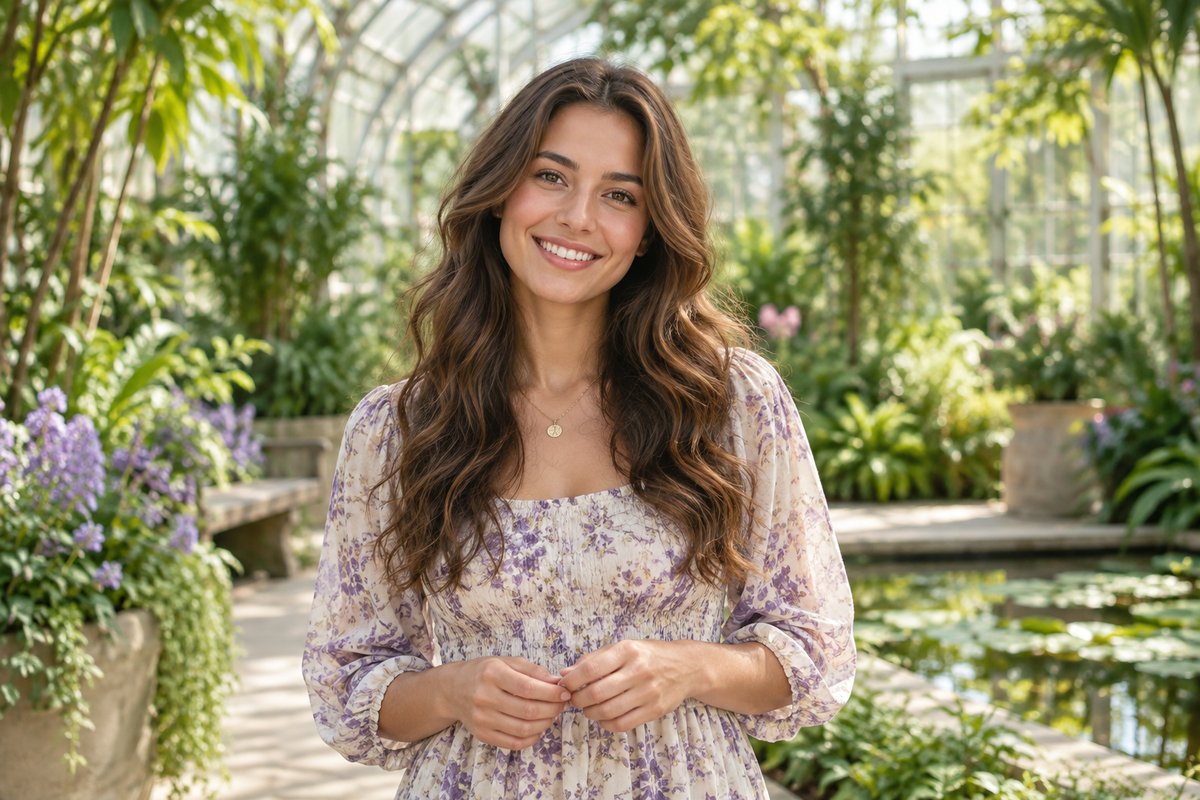
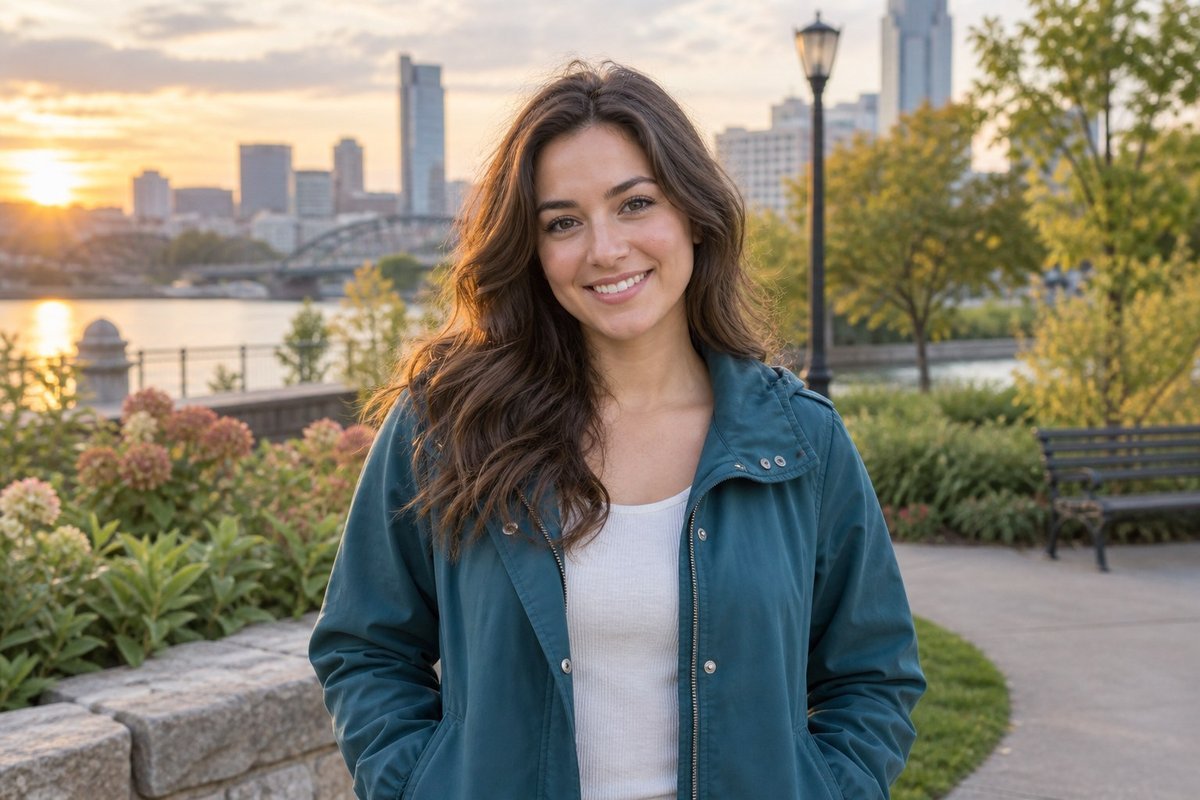
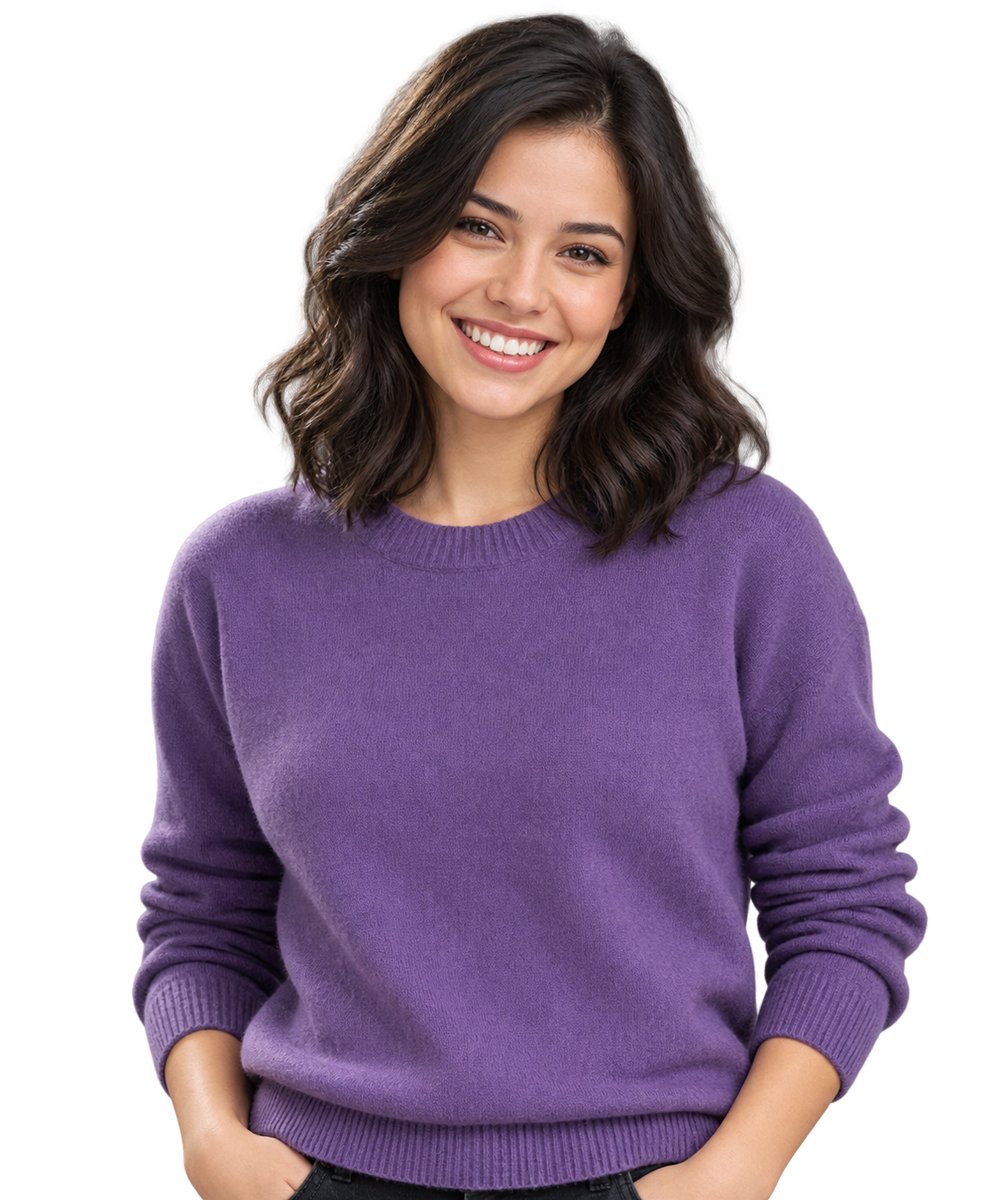
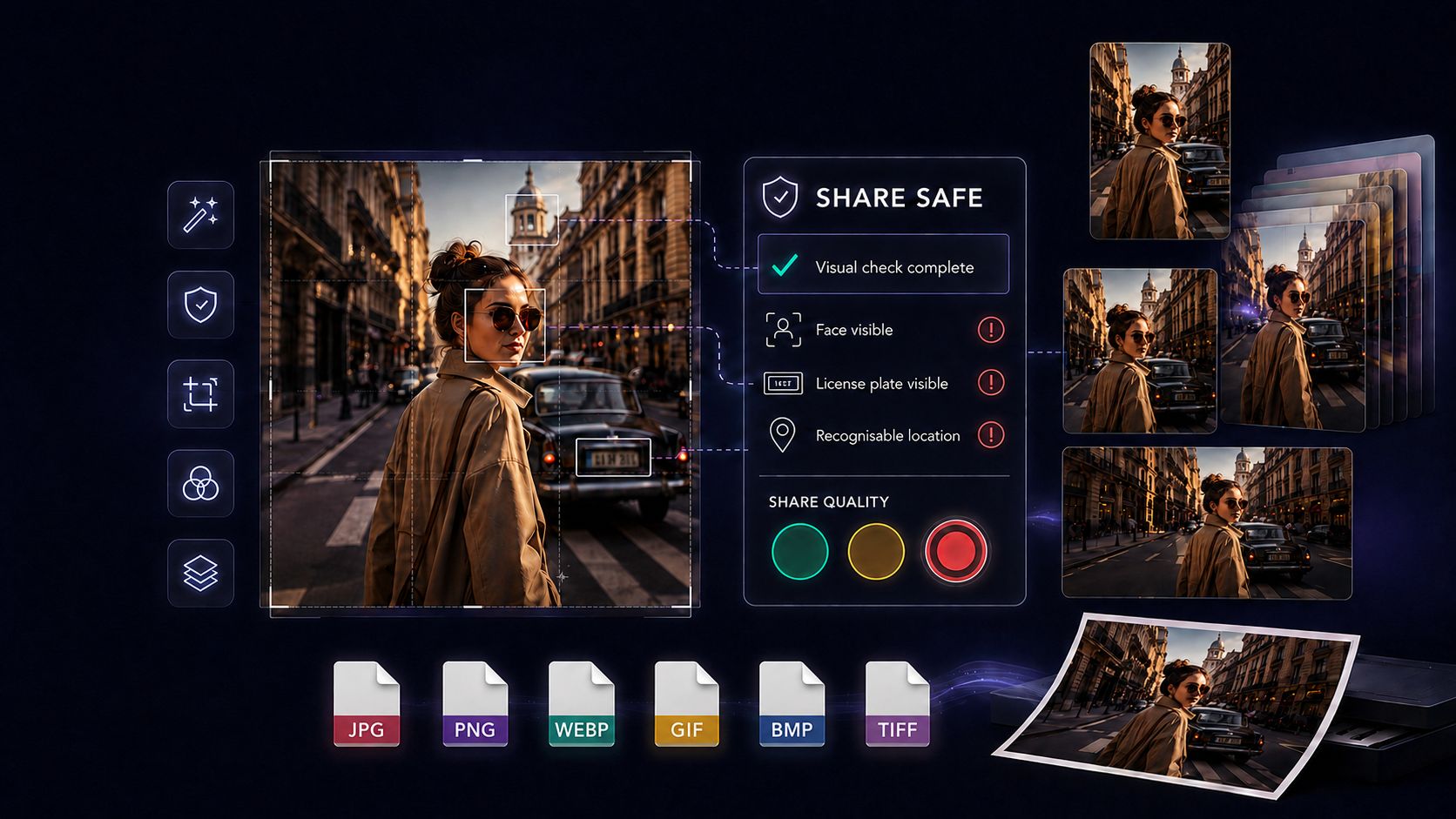
Original layout concept using GeckoShareSafe imagery
Photo grid and layout templates
Start with the finished canvas size, then choose a basic template. The collage can contain from one to ten photos.
Join two pictures horizontally for before-and-after comparisons, matching portraits, products or progress photos.
Give every photo similar visual weight in a clean grid with adjustable gaps, margins and rounded corners.
Feature one main image beside smaller supporting photos for events, products, trips or family stories.
Arrange photos in vertical frames for portraits, comparisons and wide social-media canvases.
Stack images in horizontal frames for timelines, instructions and tall Story or Pinterest-style layouts.
Place, overlap, rotate and resize photos freely when you want an aesthetic moodboard or scrapbook-style collage.
Freeform collage design
Open grid starts with a checkered transparent canvas instead of fixed frames. Drag photos onto the canvas and build the composition yourself.
MoveRotateLayerHow to make a photo grid online
The workflow keeps layout choices, photo editing and saving separate so each decision is easy to understand.
Choose a grid size, then select a Basic template or Open grid.
Add up to 10 photos as thumbnails and drag each one into a frame or onto the open canvas.
Use transparency, a colour or another image behind the collage.
Add movable captions and choose fonts, colours, backgrounds, outlines and shadows.
Choose JPG, PNG, WebP, GIF, BMP or TIFF, set quality where available and save a new copy.
Ready-made canvas sizes
Select the final collage size before choosing the template. The individual photos are then fitted inside that canvas.
1080 × 1080 pixels for square social posts and balanced photo grids.
1080 × 1350 pixels for taller feed compositions and photo stories.
1080 × 1920 pixels for full-height mobile stories and vertical layouts.
1000 × 1500 pixels for vertical moodboards and step-based collages.
1200 × 630 pixels for wide social posts, link images and banners.
2480 × 3508 pixels for a high-resolution printable collage.
Platform requirements can change. Check the destination before publishing and keep faces, text and logos inside comfortable margins.
Collage editing controls
The selected template controls the structure, while the photo tools affect only the currently selected image.
Set the photo count, outer margin, gap, rounded corners, border style, thickness and colour.
Choose Fill frame or Fit whole photo, then zoom, move, rotate or reset only the selected image.
Add a transparent, coloured or image background, then place captions using standard or device fonts.
Cutouts and sticker-style collages
Background removal is a separate GeckoShareSafe tool. Use it to prepare a person, product or object as a transparent cutout, then combine the result with a background and other photos.
Explore background removal →Local-first collage workflow
Select photos from your device, arrange them locally in the browser and save the finished copy yourself. GeckoShareSafe does not provide an image-upload service or cloud photo storage, and your original files stay unchanged.
Questions and answers
You can add and arrange up to 10 photos in one collage.
Yes. Choose a two-photo grid and place one picture in each frame.
Yes. Open grid lets you move, resize, rotate, overlap and reorder photos freely.
Yes. Fill, fit, zoom, position, rotation and photo-frame controls affect only the selected photo.
Yes. Add movable captions and choose fonts from the standard list or load fonts available on your device.
Yes. Choose transparency, a background colour or a background image in the separate Background step.
Save the finished collage as JPG, PNG, WebP, GIF, BMP or TIFF. Quality control is available for JPG and WebP.
No. The collage is created locally in your browser and your original files remain unchanged.
Helpful collage and image-size guides
Choose the destination and canvas size first, then keep important faces, text and logos away from edges that may be cropped.
Build the layout around your photos
Combine up to 10 photos, add backgrounds and text, and save a new copy without uploading your images.