
Rectangle crop
Use a free rectangular crop to remove unwanted edges, tighten the composition or create a different width-to-height relationship.
Free online image cropper · No image uploads
Crop images online for social media by removing unwanted edges, improving the composition or reshaping a photo for a profile picture, post, Story or design. Drag and resize the crop, reposition your image and choose the color surrounding a circle or oval. Everything runs locally in your browser.
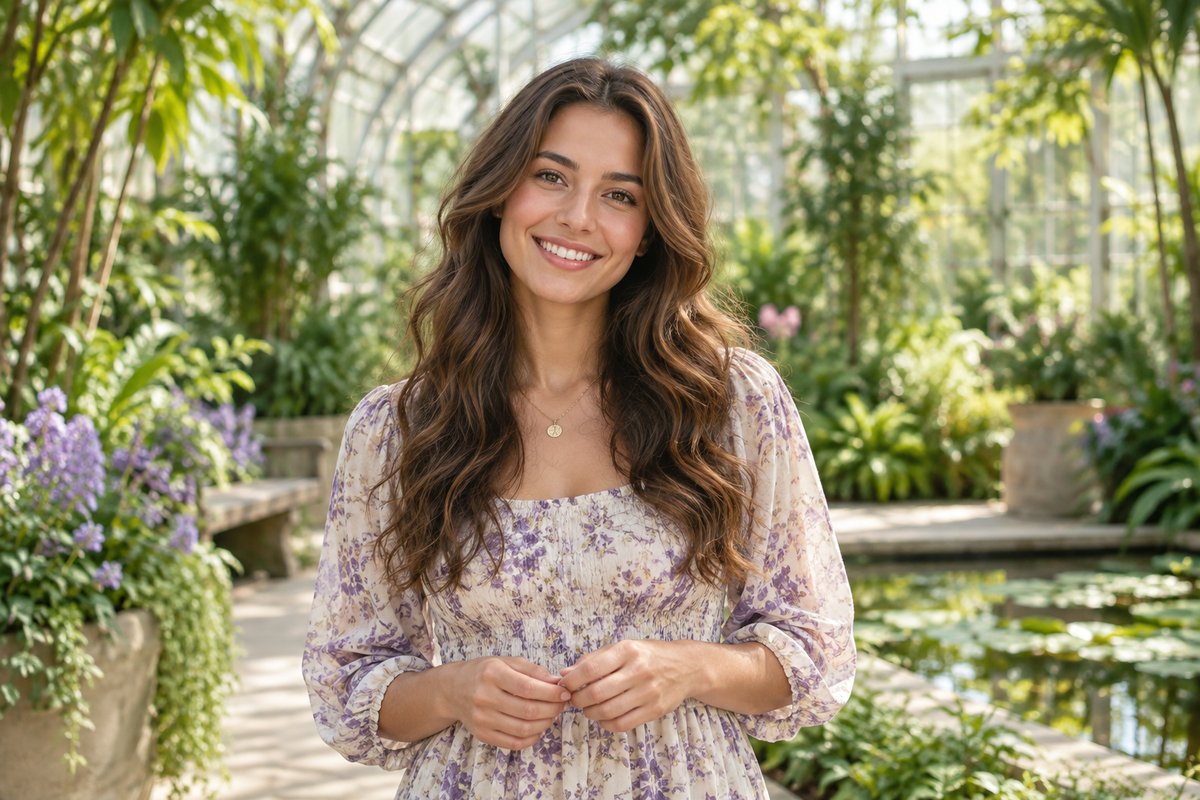
Preview the crop before applying it
Three crop shapes
Each shape uses the same direct controls: resize the selected area, move the frame and decide exactly which part of the original belongs in the working copy.
Use a free rectangular crop to remove unwanted edges, tighten the composition or create a different width-to-height relationship.
Frame a face, product or logo inside a perfect circle. Reposition the photo, then choose the color displayed outside the round image area.
Create a wider or taller ellipse for portraits, invitations, collages and layouts that need softer edges than a rectangle.
Simple photo cropping
The crop remains adjustable until you apply it, and it changes only the working copy used for the rest of the editor.
Open a photo from your device. It stays in your browser and is not uploaded to an editing service.
Choose Rectangle, Circle or Oval and, for a rounded crop, select the surrounding color.
Drag or resize the crop area. With circle and oval crops, drag the image to reposition it inside the shape.
Review the composition, apply the crop, then continue to resize, edit and save a new copy.
Why crop a photo?
Use a circle crop to keep a face or logo centered before placing the image in a round profile-photo slot.
Choose a tall composition that gives the subject room inside a vertical social-media frame.
Remove empty space or distractions near the edges so the important subject becomes easier to see.
Use an oval crop for a softer portrait frame in a collage, invitation, presentation or printed design.
Crop, resize or compress?
These phrases are often searched together, but they solve different problems. Knowing the distinction prevents stretched images and unnecessary quality loss.
It removes pixels outside the selected area. Use cropping when the subject needs tighter framing or the image needs a different aspect ratio.
It makes the retained image larger or smaller. Crop first to choose what stays, then resize when a platform or print layout requires particular dimensions.
It reduces storage or transfer size, usually through format and quality settings. Cropping may reduce the pixel count, but it does not target an exact file size in KB.
Private by design
Your image is read and edited on your device. GeckoShareSafe does not send it to an image-processing service or store a cloud copy. When you finish, the edited result is saved as a new file and the original remains unchanged.
For a useful result
Keep important details away from the edge. Faces, text and logos need breathing room, especially when interface elements may cover part of a social post.
Crop before you resize. Choose the composition first, then set the final dimensions so you do not resize pixels that will later be removed.
A close crop contains fewer pixels. Enlarging a small retained area cannot restore detail that was not captured in that area.
Circle and oval outputs still use a rectangular canvas. The color you select fills the area outside the curved crop shape.
Questions and answers
Open the Crop tool, choose an image and select Rectangle, Circle or Oval. Drag and resize the crop area until it contains what you want to keep, then apply it and continue to save a new copy. The single-image tool is free and requires no account.
Select Circle under Crop shape. Adjust the crop area, drag the photo to position the subject inside the round frame and choose the surrounding color. Apply the crop when the preview looks right.
Yes. Select Oval, resize the frame to make the ellipse wider or taller and reposition the photo inside it. Oval crops work well for portraits, keepsakes and decorative layouts.
Yes. The aspect ratio is the relationship between width and height. Reshaping a rectangular crop changes that relationship. After choosing the composition, continue through the editor if you also need different pixel dimensions.
Start with a tall crop and keep the important subject away from the outer edges. Full-screen Story and TikTok layouts commonly use a 9:16 frame, but platform interfaces can cover parts of the image and specifications can change. After cropping the composition, continue to the size step for the required dimensions.
Cropping removes pixels outside the selected area, so the retained area has fewer total pixels than the full original. It should remain clear at an appropriate display size, but a very small crop may look soft if it is enlarged. Export format and quality settings can also affect the saved result.
No. Cropping chooses which part of the image remains. Resizing changes its pixel dimensions. Compression reduces its file size. You may need all three operations, but an exact target such as 200 KB is a compression requirement rather than a crop shape.
No. The selected photo is processed locally on your device. GeckoShareSafe does not provide an image-upload service or cloud photo storage.
Useful references
Platform requirements can change, so confirm the current destination before preparing important work.
Ready when you are
Start with the original photo and adjust the crop before saving a new copy.